

Introduction
Screen recording has become an essential tool for professionals, educators, gamers, and content creators. Whether you want to create tutorials, record gameplay, or capture online meetings, having a reliable screen recorder can make your work easier and more effective.
In this guide, you’ll learn how to screen record on Windows using a simple and powerful tool like Fast Screen Recorder.
Why Screen Recording is Important
Screen recording helps you:
- Explain complex processes visually
- Create engaging tutorials and courses
- Record meetings and presentations
- Capture gameplay and share content
Instead of writing long instructions, you can simply record your screen and show exactly what to do.
How to Screen Record on Windows (Step-by-Step)
Step 1: Download and Install
Download Fast Screen Recorder from the official website and install it on your PC.
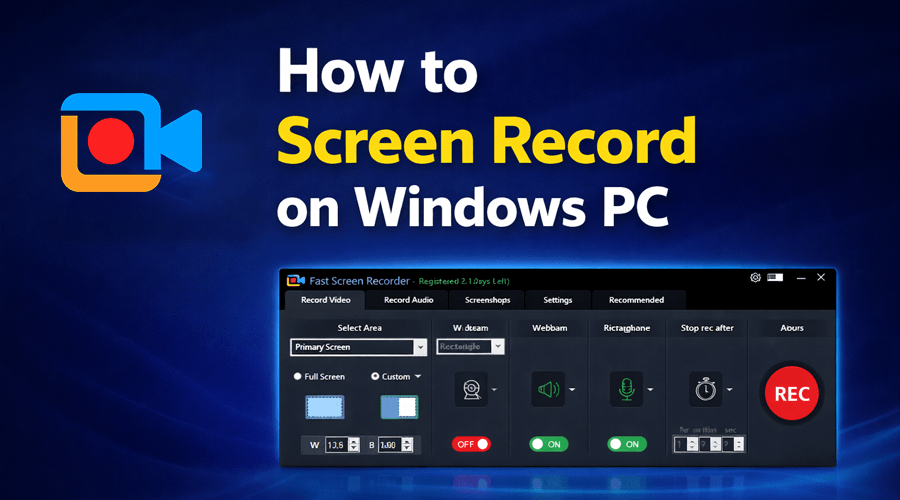
Step 2: Select Recording Area
Choose:
- Full Screen
- Custom Screen Area
Step 3: Configure Audio and Webcam
- Enable microphone or system audio
- Turn on webcam overlay if needed
Step 4: Start Recording
Click Start Recording and begin your task.
Step 5: Stop and Save
Click Stop to save your recording.
Key Features You Should Use
1. Multi-Screen Recording
Record multiple monitors simultaneously—perfect for gaming and advanced setups.
2. Webcam Overlay
Add your face to videos with customizable shapes and movable position.
3. Drawing Tools
Highlight important points using arrows, lines, and shapes during recording.
4. Audio Control
Record microphone and system audio with adjustable volume.
5. Video Conversion
Convert recorded videos into MP4, AVI, MOV, and more formats instantly.
Tips for Better Screen Recording
- Use a clean desktop for professional videos
- Adjust frame rate for smoother output
- Use a microphone for clear audio
- Keep recordings short and focused
Common Issues and Solutions
No Audio in Recording
Check your microphone and system audio settings.
Recording Lag
Lower video quality or close background apps.
Webcam Not Working
Ensure camera permissions are enabled.
Conclusion
Screen recording is one of the most effective ways to communicate and create content. With the right tool, you can easily record high-quality videos for tutorials, business, or entertainment.
Fast Screen Recorder makes the entire process simple, fast, and efficient for Windows users.

